How to Change a Date or Name on All Pages of a PDF
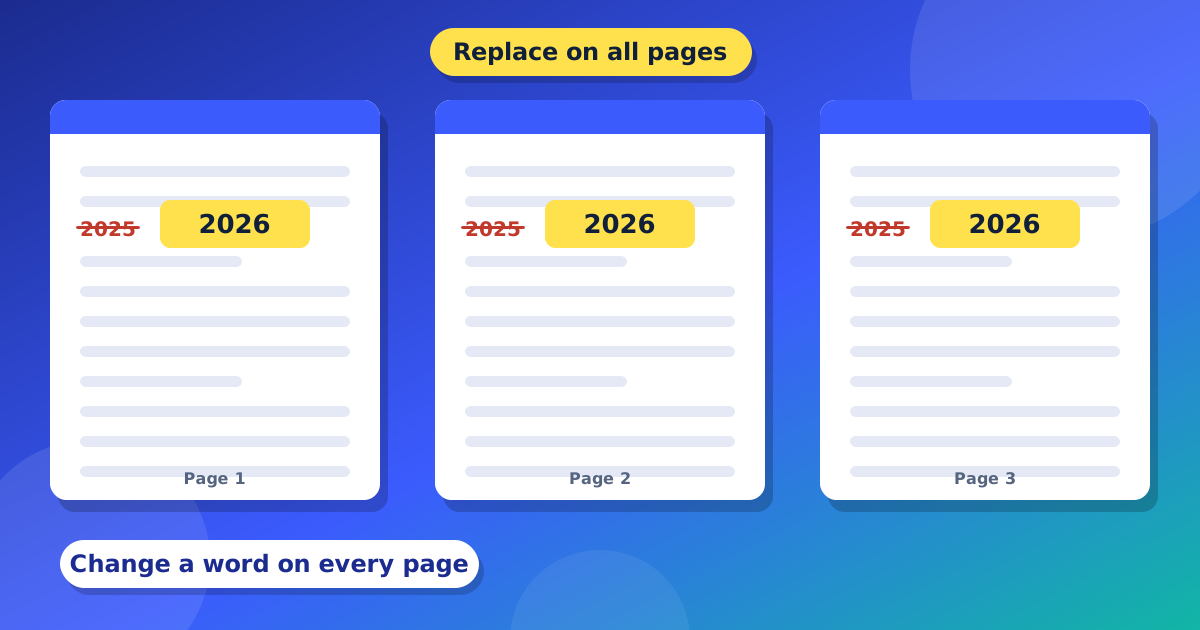
Imagine you have a PDF with 20 pages. A name or a date shows on every page, in the header or the footer. And it is wrong. Fixing it 20 times would take a long time. There is a faster way. This guide shows you how to fix a word on all pages of a PDF with one click.
What can you fix this way?
- A date, like an old date in a footer.
- A company name or a person's name.
- A phone number or an email address.
- A price or a short code.
Step by step
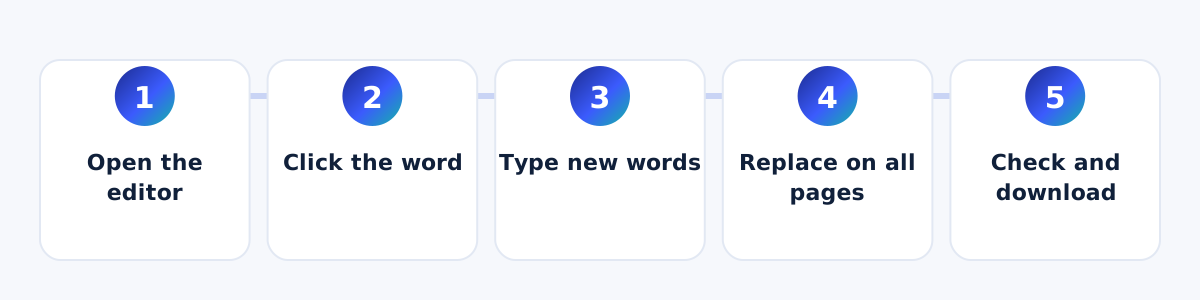
- Open your PDF in the PDF Editor.
- Click the word you want to change. The editor shows a box under "Existing text".
- In the box that says "Replace with (all pages)", type the new words.
- Press "Replace on all pages".
- Look at a few pages to check. Press undo if something looks wrong.
- Press "Download PDF".
What if I want to remove it instead?
Press "Remove on all pages". The same words will be taken off every page they are on.
Tips
- The words must match. If a page has the name written in a different way, it may not change there. Check a few pages.
- Use new words that are about the same length as the old ones, so they do not touch other words.
- If the PDF is a scan, this does not work, because a scan has no real words.
- Keep your first file safe.
You may also like: how to edit text in a PDF.
A real-life example
Ali has a 15-page report. The title page says "2025", and every page has "Report 2025" in the footer. The report is for 2026 now. He clicks the footer words, types "Report 2026", and presses "Replace on all pages". All 15 footers change. Then he fixes the title page by hand. The whole job takes a few minutes.
Why is this useful?
When you fix pages one by one, it is easy to miss a page. When you fix all pages at once, every page is the same. This saves time and makes fewer mistakes.
Common problems and easy fixes
- One page did not change. The words on that page may be a little different, for example a space or a small letter. Fix that page by hand.
- The new words touch other words. Use a smaller font size or fewer letters.
- The date is inside a picture. Words in a picture cannot be changed. Cover the picture part with a white box and type on top.
Check your work before you download
Scroll through the pages one by one, or use the small page pictures on the side. Look at the top and bottom of each page, because that is where repeated words usually are. Also look at the first page and the last page. These two pages often have words that are a little different from the rest. If everything looks right, press "Download PDF". If not, press undo and try again with a slightly different word.
Questions and answers
Will it change other words that look the same?
It changes the words that match the one you picked. Look at a few pages after, and use undo if you do not like the result.
Can I change only one page?
Yes. Edit the line on that page and do not press "Replace on all pages".
Is this free?
Yes. It is free and needs no account.